Stellar Firmware update via DT Nexus
2 min
Requirements
- DT Stellar MkII or Stellar XL
- Stellars connected via ethernet with DT Connect
- Computer with DT Nexus
A computer running macOS is required to update DT Stellar firmware. Windows, Linux, and other operating systems are not supported.
Steps
Download the most recent firmware
Hover the mouse on the Overflow Menu in the Global Light Control bar to reveal the “Update Firmware” option.
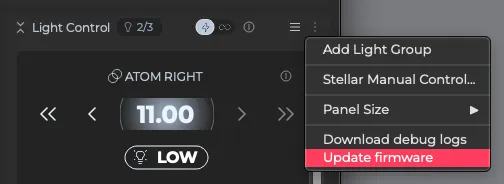
DT Nexus opens a file browser window. Navigate to the folder where the new firmware file is.
Select the .bin file and press OK.
The LED Indicator Ring Dial and individual LEDs will turn purple to indicate the progress of the update. Once complete, the Stellar will turn back on, and the Indicator Ring will return to a constant blue color.
To confirm the update is complete, hover the mouse over the light Information Icon by each light to see the loaded firmware version.