Straightening and Padding
Straightening
Straightening in AI Crop can be set based on a variety of material attributes.
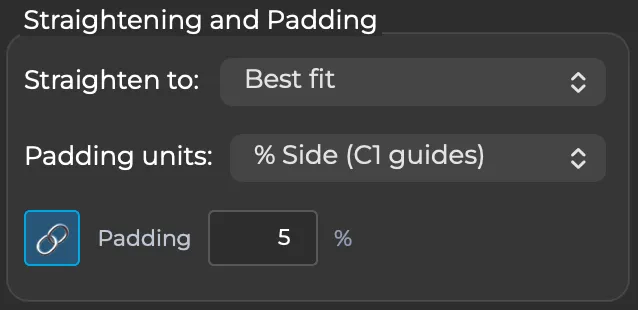
- Best Fit: The smallest rectangle that will fit the entire object is used. This is the default mode because it is most robust to unusually shaped material.
- Gutter Angle: [only available in 1 Up and 2+ Up modes] For material with facing pages the gutter is defined by the average of the two inside edges (e.g. the right side of the left page and the left side of the right page). When this method fails – for example, if only one page is found – then Best Fit is used.
- Text Lines: The inside 80% of each page is analyzed (10% from each edge is ignored), and the average angle of any text found is used for straightening. Note that this only snaps it to the closest 90º angle, not to horizontal, so as it remain at the same orientation for pages that have vertical text such as Japanese Kanji. Also note that this is NOT performing OCR or character-level recognition so is safe for Personally Identifying Information purposes and is not language dependent, but does require at least three lines of clear text that have similar angles. When this method fails Best Fit is used.
- Top/Left/Right/Bottom: A single side of the material is used as the reference. The "prevailing edge" of that side is used (defined by the median angle of the center 80% of the side).
- All Edges: An average of Top/Left/Right/Bottom prevailing edges.
- None: Straightening is not adjusted at all. This may be appropriate for situations where you are very confident in the angle at which the material was placed, and are concerned automatic straightening will degrade the precision of that angle.
Padding
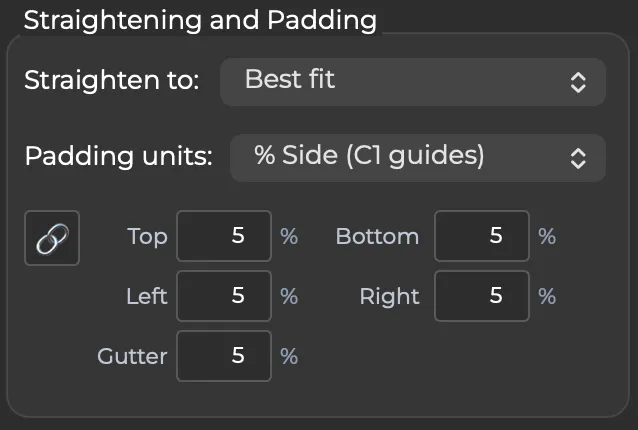
Positive or negative padding can be added to the image on a per-side basis. Positive padding adds a buffer around the edges of the object. Negative padding helps to eliminate the edges of the object; for example, if you want to crop into the page content of a book for OCR rather than showing the page edges.
When two or more facing pages are detected and cropped separately, the gutter padding can be handled separately from than the other edges. If you check the Gutter Padding box the values below will override the relevant edge, but only on page split material.
"Gutter" is defined by the edge closest to the facing page, whether left-right (e.g. a standard book with a left and right page) or top-bottom (e.g. a calendar with a horizontal gutter and top and bottom page).
Padding Linked/Unliked
The link icon can be enabled or disabled. When enabled a single padding value is used for all sides, including gutter when applicable. There is no difference to using the link icon, or disabling it but manually entering the same value for all fields; it is simply for convenience.
Padding Units
Padding can be set as:
- Pixels (px). This is always defined by absolute pixels at the original image level. It is not affected by process recipe.
- % Side (C1 guides). The padding is set such that the padding ends up as % of the final crop. This mirrors the behavior of the Guides system in Capture One Enterprise and Capture One Studio and Capture One CH.
- % Diagonal. This is similar to % Side (C1 Guides) but ensures the padding is the same on all four sides. Because it is based on the diagonal and not per-side it will not match the guides tool in C1.
Note about C1 crop readouts: Capture One's crop tool reads out in units based on the setting of Crop and the selected Process Recipe; for example if you have a process recipe set to export images with 2000px on the long side then in C1 the crop will always be labeled with 2000px on the long side.