Managing Users in an Organization
Accessing Organization Management Features
Only user accounts with the Administrator role can add or remove accounts from an Organization.
Login to the DT Nexus User Dashboard at nexus.digitaltransitions.com using an Administrator account.
Scroll down to the Organization management section.
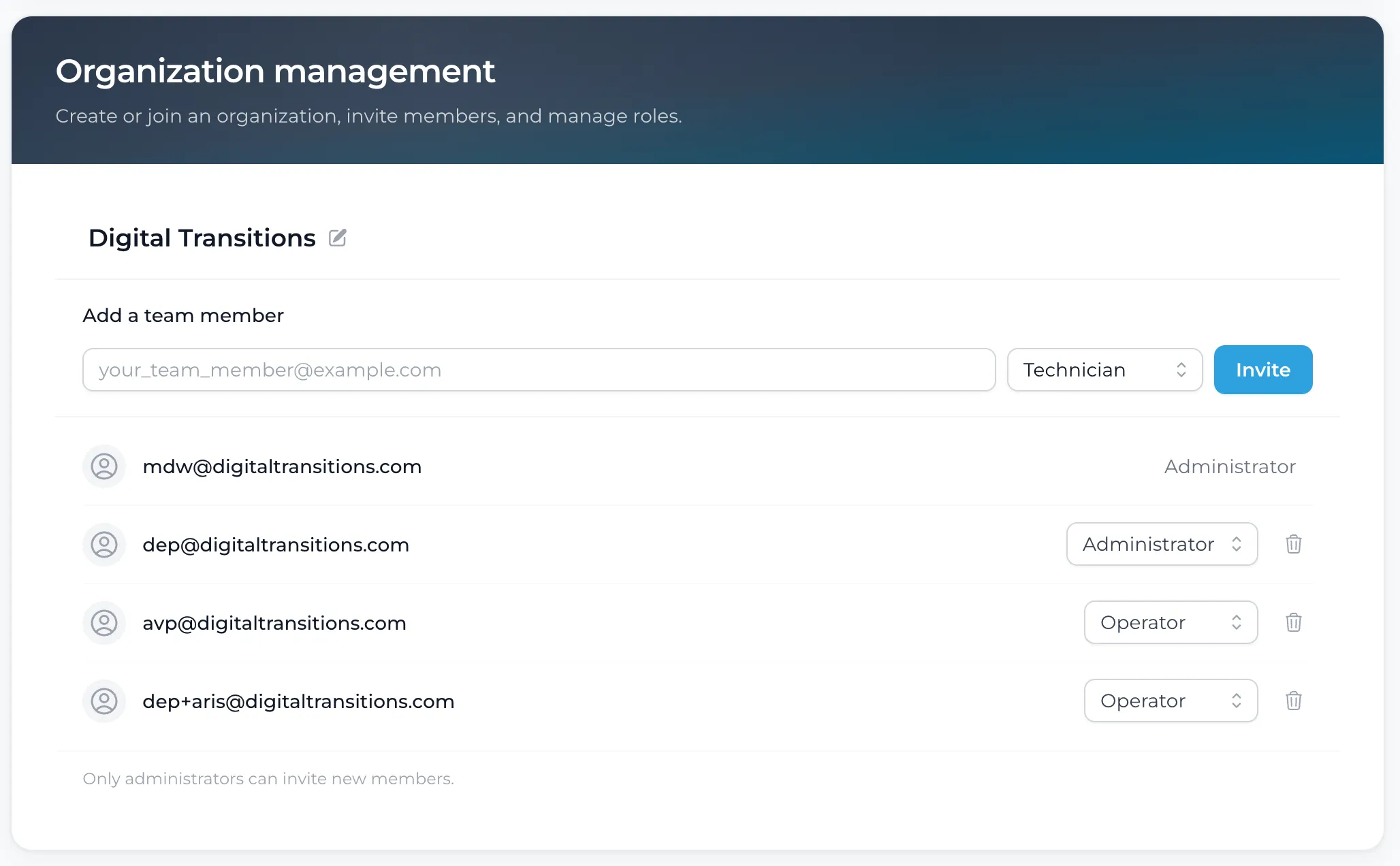
Adding a User to an Organization
Enter the email address of the user you wish to add to the Organization in the field labeled Add a team member.
Select the role you wish to assign to this user.
The role determines what actions the user can perform within the Organization.
The available options are Administrator, Technician, and Operator. See the table below for which actions are available to which role.
Role | Can view license | Can deactivate machines | Can manage membership |
|---|---|---|---|
Administrator | ✓ | ✓ | ✓ |
Technician | ✓ | ✓ | — |
Operator | ✓ | — | — |
Click the Invite button.
The user will receive an email with a link to create a new password and join the organization.
Once the user has completed the enrollment steps, they can use their email address and password to login to DT Nexus as a member of your organization.
Removing a User from an Organization
In the DT Nexus User Dashboard, navigate to the Organization management section.
Find the email address of the user you wish to remove from your Organization and click on the trash can icon at the end of the row.
The application will ask you if you're sure. Click on the check mark to confirm.
The user is now removed from your Organization and cannot use their email address to login to DT Nexus under any of your Organization's licenses.