Film Mode Options
Film Mode uses its own dedicated model trained specifically on transmissive materials such as film strips, mounted slides, sheet film, and similar collections. It has several options unique to this mode that control which areas DT Nexus finds and how those areas become crops.
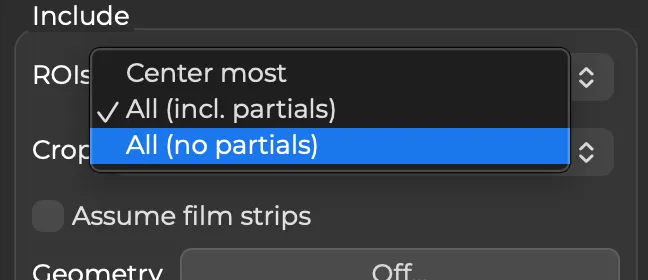
ROIs
ROIs determines which detected regions of interest (ROIs) DT Nexus will create crops for.
- Center most crops only the ROI closest to the center of the frame. Use this when more than one ROI might be visible, but your intention is only to capture one at a time.
- All (incl. partials) crops every detected item of the selected type, including items that extend beyond the edge of the camera frame.
- All (no partials) crops every complete detected item, while excluding likely partial items at the edge of the frame or items substantially smaller than the other detected items. This is useful when a film strip or sleeve extends beyond the capture area. However, frames that are only slightly smaller (cropped only at their outer edge) may still be included; in those situations "Center most" might be preferred.
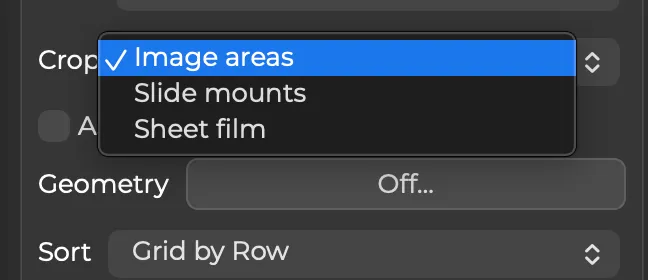
Crop
Crop determines what Film Mode considers the region of interest.
Image Areas
Creates one crop per exposed image area. Use this when the desired output is the photographic image itself rather than the outer edge of sheet film or slide mount.
Slide Mounts
Creates one crop per physical slide mount. Use this when the mount is part of the digitized object, for example when it contains handwritten notes, manufacturer information, or collection markings. This works best when the slide mount is reasonably illuminated; if it is severely underexposed detection may fail.
Sheet Film
Creates one crop per physical sheet of film, including the unexposed rebate. Use this for large-format sheet film, glass plates, and similar materials when you want to crop to the physical object of the film rather than the image it contains.
Sheet film is currently the weakest of the three modes and may be inconsistent in result. Consider Sharing Film Sheet Images with DT to help us improve this mode.

Assume Film Strips
Assume Film Strips is available only when Crop is set to Image Areas.
Enable this option when the capture contains regularly spaced frames in film strips or sleeves, such as 35 mm or medium-format film. DT Nexus assumes that frames are a consistent size and evenly spaced along each strip. It uses this pattern to improve the crop locations, collapse duplicate detections, and ignore detections that do not belong to a strip.
This mode is especially effective at improving the precision of cropping when one or more frames have edges or corners that are not visible. For example, in stage photography captured on negative film the corners of the frame are sometimes completely blank (black in the scene; clear on the negative film). But this mode can help to place the frame correctly based on the start, end, size, and location of other frames around it.
This mode may also work well on slide sheets, but has not be tested as thoroughly in that context.
Do not enable this option for mixed formats, irregularly spaced material, isolated frames, or sheet film. In those cases the regular-strip assumption may not match the material.
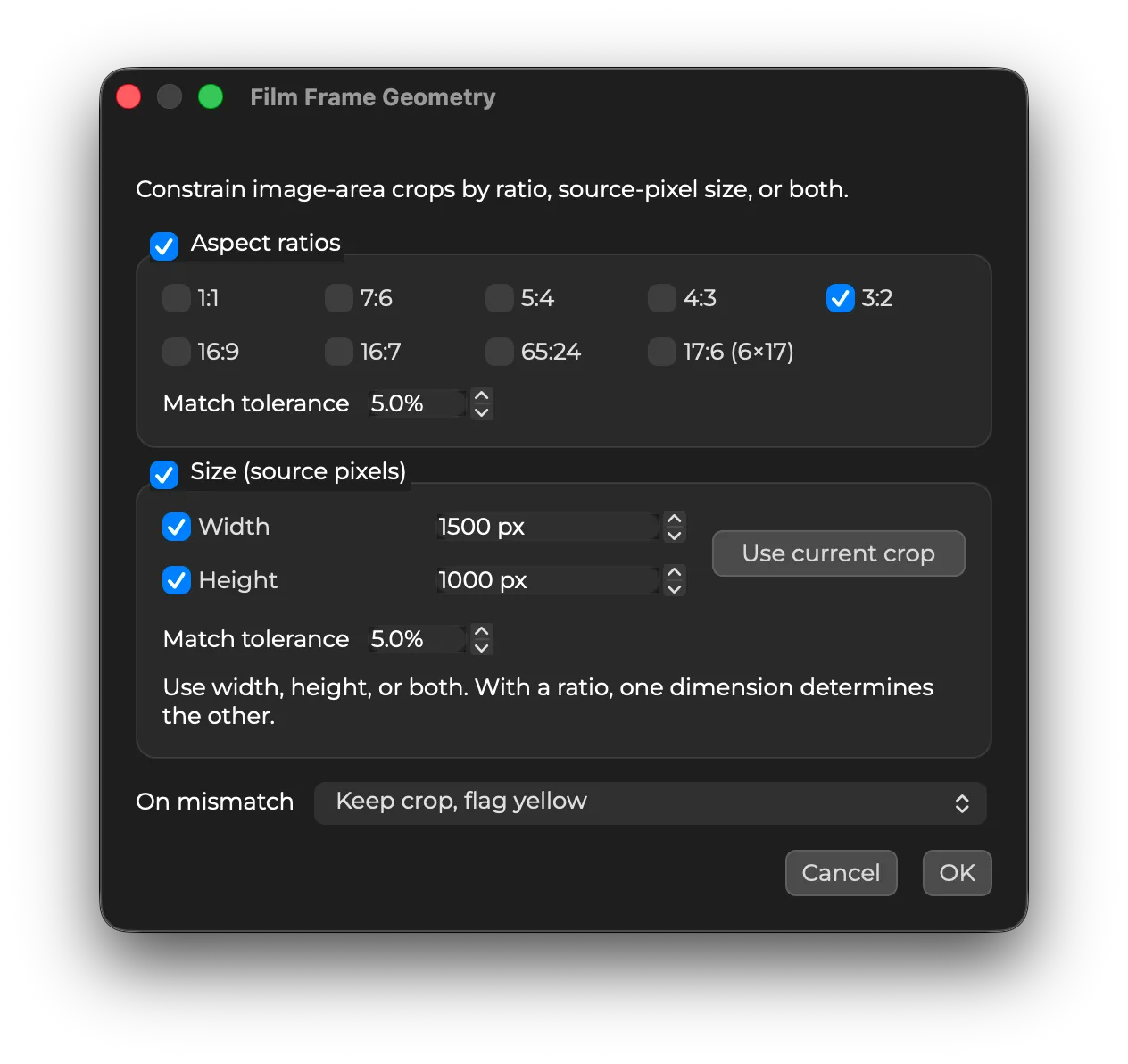
Geometry
Geometry is available only when Crop is set to Image Areas. It can be used to make a run of frame crops more consistent by constraining the expected aspect ratio, source-pixel dimensions, or both.
Aspect Ratios
Enable Aspect ratios and select one or more expected frame ratios. DT Nexus accepts either orientation of a selected ratio, so a 3:2 ratio can match both landscape and portrait film.
Use Match tolerance to define how closely a detected frame must match the selected ratio. A lower tolerance is more strict; a higher tolerance allows for more variation.
Size
Enable Size (source pixels) to specify the expected crop width, height, or both. The dimensions are measured in Capture One source-image pixels.
Use Use current crop to read the width and height of the currently selected Capture One crop. This is a convenient way to use an existing, approved crop as the expected size.
When both an aspect ratio and a size are enabled, DT Nexus uses both constraints.
On Mismatch
A crop that is within the selected tolerance is adjusted to the exact expected geometry. For crops outside the tolerance, choose one of the following actions:
- Keep crop, flag yellow keeps the detected crop and applies a yellow color tag for QC.
- Force ratio or Force size adjusts the crop to the selected geometry.
- Force …, flag yellow adjusts the crop and applies a yellow color tag for QC.
- Discard ROI does not create a crop for that detection.