Capturing
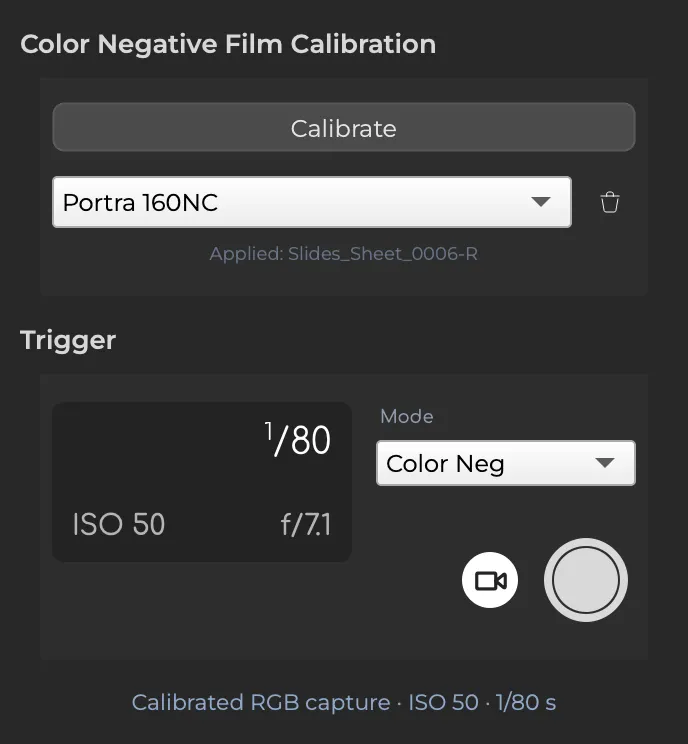
Once a calibration has been created you can use it by selecting the calibration from the pulldown in Color Negative Film Calibration and selecting Color Neg in the Trigger tool.
The Color Neg mode appears in the Trigger tool's Mode menu when a Stellar RGBW light is connected. Until a calibration is selected, the Trigger tool shows "Color Neg Preset needed for capture".
Note that selecting a calibration also recalls its ISO and shutter speed. It also applies the calibration's LCC and color profile, and the panel confirms what was applied. If you find you want to associate a post-capture white balance you can use [...] Update WB of selected calibration. That new white balance value will be applied after future captures made with that calibration.
The same [...] menu has Import calibration... to add a calibration file (.colorneg.json), for example one made on another computer, and Open calibrations folder. To delete the selected calibration, click the trash button (Delete calibration) in the panel.
To keep the lights in their calibrated state between captures, turn on "Keep lights in Spectrally Calibrated state between captures" in Preferences > Color Neg (off by default).