Checksums
A checksum is a short code calculated from the contents of a file. If even one byte of the file changes, the checksum changes. Archives use checksums for fixity: you record a checksum when a file is made, then check it again later, for example after copying files to a server or before a delivery, to prove that nothing has changed.
File > Checksums... creates checksums for files and folders, and verifies them later. It works on any files and folders, whether DT Nexus, Capture One or anything else made them. Capture One does not need to be running.
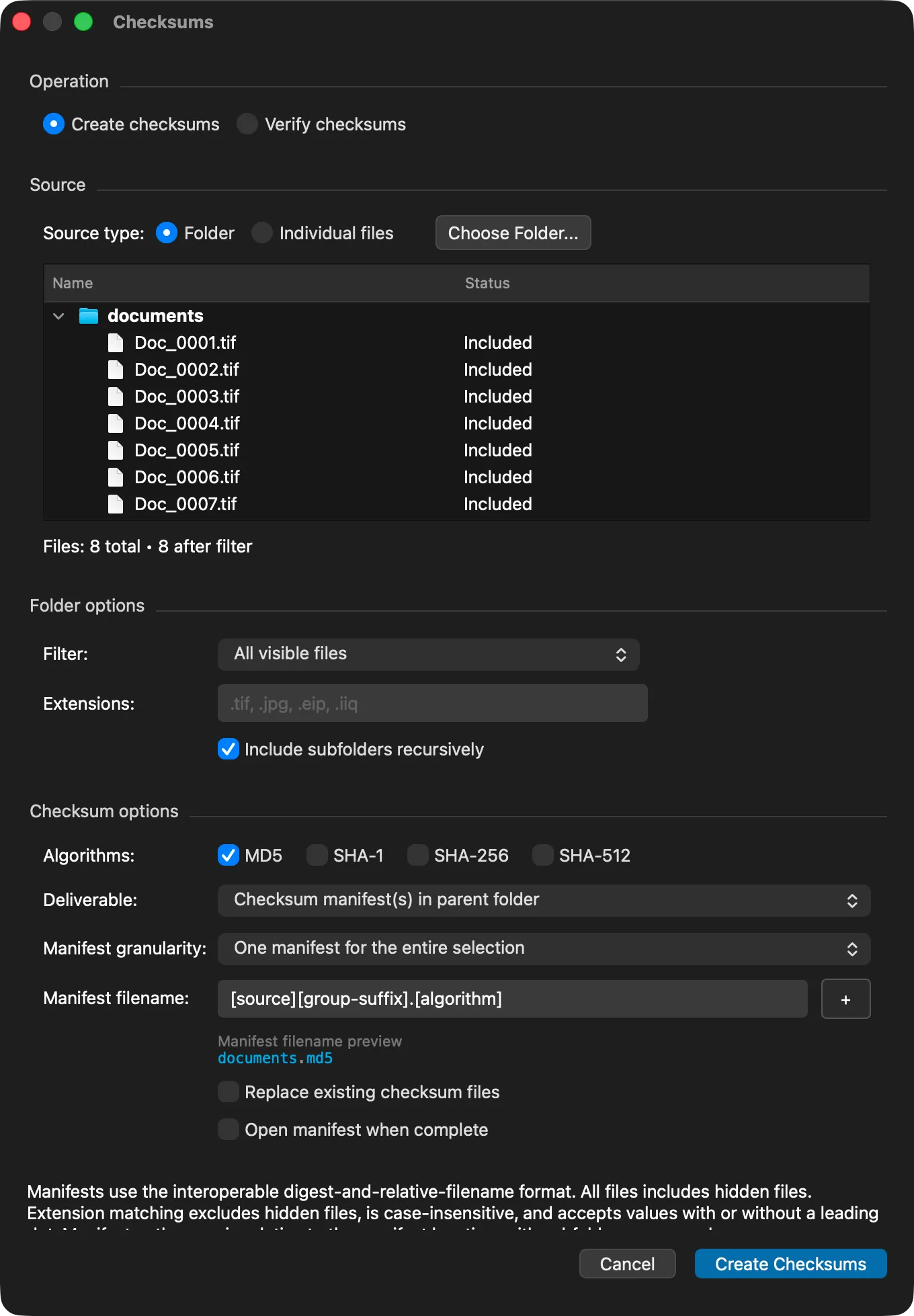
Creating Checksums
Choose File > Checksums.... Under Operation, select Create checksums (the default).
Under Source, set Source type: to Folder (the default) or Individual files. Click Choose Folder... or Choose Files... and select what to checksum.
The preview list shows each file with the status Included or Excluded, and the summary shows how many files will be processed. The list shows up to 1000 files, but every matching file is processed.
For a folder, set the Folder options: the Filter: and whether to Include subfolders recursively. See Options below.
Under Checksum options, select one or more Algorithms:, and choose the Deliverable:. For manifests, also choose the Manifest granularity: and check the Manifest filename: preview.
Click Create Checksums. A progress bar shows the progress. When the job is done, DT Nexus reports how many checksum records and output files it created.
To stop a job that is running, click Cancel.
Verifying Checksums
Choose File > Checksums.... Under Operation, select Verify checksums.
Click Choose Checksum Files... and select the checksum files to check: manifests, per-file sidecars, or both. The file dialog shows files ending in .md5, .sha1, .sha256 and .sha512. To choose another checksum file, such as a BagIt manifest-sha256.txt, switch the dialog to All files.
To also find files that are on disk but missing from the checksum files, select Report files not listed in the selected checksum files. Use this only when the checksum files cover the whole folder tree, because every other file in that tree is reported.
Click Verify Checksums. Each file is read once, even when the checksum files hold several algorithms for it. When the job is done, the Checksum Verification Results window opens.
To keep a record, click Save Verification Report.
Options
Folder Options
These options appear only when the source is a folder.
Option | Choices | Default |
|---|---|---|
Filter: | All files includes hidden files. All visible files leaves out hidden files. Files by extension includes only the extensions listed in Extensions:. | All visible files |
Extensions: | A list such as .tif, .jpg, .eip, .iiq. Matching ignores upper and lower case, a leading dot is optional, and hidden files are left out. | Empty |
Include subfolders recursively | On or off. | On |
Checksum Options
Option | Choices | Default |
|---|---|---|
Algorithms: | MD5, SHA-1, SHA-256, SHA-512, in any combination. | MD5 |
Deliverable: | Per-file sidecars (next to each source file), Checksum manifest(s) in source folder, Checksum manifest(s) in parent folder. | Checksum manifest(s) in parent folder |
Manifest granularity: | One manifest for the entire selection, One manifest per directory containing files, One manifest per immediate child directory, One manifest per file extension. | One manifest for the entire selection |
Manifest filename: | A name built from text and tokens. See Manifest File Names below. | [source][group-suffix].[algorithm] |
Replace existing checksum files | On or off. | Off |
A sidecar is a small checksum file for one source file, saved next to it. A manifest is one checksum file that lists many files. Choose sidecars when each file travels on its own, and a manifest when a folder is delivered as a whole.
Checksum manifest(s) in parent folder keeps the manifest outside the folder it describes, so the folder itself is unchanged. Checksum manifest(s) in source folder saves the manifest inside the folder, so it travels with it.
With Replace existing checksum files off, DT Nexus checks before it starts. If any checksum file it would write already exists, the job stops before any file is read, and nothing is overwritten.
The last checkbox in this group opens the result when the job is done. Its label depends on your choices: Show source folder when complete (sidecars), Open manifest when complete (one algorithm and one manifest for the entire selection), or Show manifest folder when complete. It is off by default.
Manifest File Names
Type text in Manifest filename:, or click + to insert a token at the cursor. The preview below the field shows the name that will be used. Reset to default name restores the default. DT Nexus remembers your template for the next time.
Token | Menu label | Replaced with |
|---|---|---|
[source] | Source name | The name of the source folder |
[algorithm] | Checksum algorithm | The algorithm, for example md5 or sha256 |
[group] | Manifest group | The folder or extension the manifest covers |
[group-suffix] | Manifest group (with separator) | The group with a leading hyphen, or nothing when there is only one manifest |
[extension] | File extension group | The file extension, when there is one manifest per file extension |
[date], [date-compact] | Date (YYYY-MM-DD), Date (YYYYMMDD) | The date the manifest is created |
[time], [time-seconds] | Time (HH-MM), Time (HH-MM-SS) | The time the manifest is created |
For example, with the default template, a folder named Box_01 and MD5 selected, the manifest is named Box_01.md5.
Two rules keep the names unique:
- When you select more than one algorithm, the name must contain [algorithm].
- When the granularity makes more than one manifest, the name must contain a group token.
File Formats
Each line of a checksum file holds one checksum, two spaces, and the file's path:
d41d8cd98f00b204e9800998ecf8427e Subfolder/IMG_0001.IIQ- Paths are relative to the location of the checksum file, and subfolders are kept.
- This is the same format that md5sum -c and shasum -c read, so the files can be checked with other tools too.
- Checksum files end in .md5, .sha1, .sha256 or .sha512, after the algorithm.
- A sidecar is named after its source file with the algorithm added, for example IMG_0001.IIQ.md5.
When verifying, DT Nexus also reads manifest-sha256.txt from a BagIt bag. It treats that file as a BagIt manifest only when it sits beside a bagit.txt file that declares a BagIt version. Otherwise it reads it as an ordinary SHA-256 manifest. DT Nexus does not create BagIt bags.
Verification Results
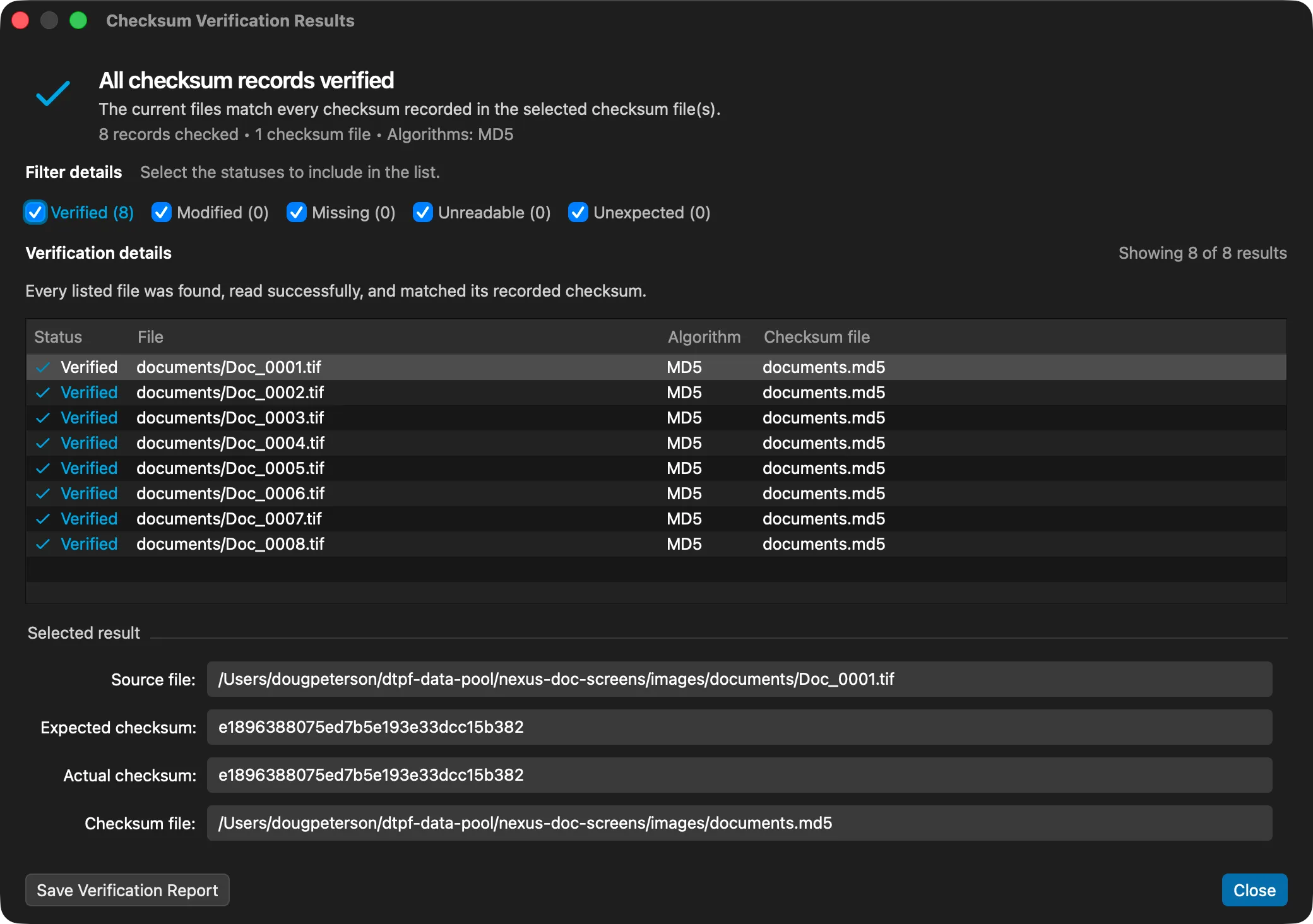
The Checksum Verification Results window starts with Verification passed or Verification found issues, and the number of issues. Click a status to show only the files with that status. Select a row to see the source file, the expected and actual checksums, and the checksum file it came from.
Status | Meaning |
|---|---|
Verified | The file's checksum matches the checksum file. |
Modified | The file exists, but its checksum does not match. Its contents have changed since the checksum was made. |
Missing | The file is listed in the checksum file but was not found. |
Unreadable | The file was found but could not be read. |
Unexpected | The file is on disk but not listed in any of the selected checksum files. This is reported only when Report files not listed in the selected checksum files is on. |
Save Verification Report saves a plain-text report. It suggests your Desktop and a name such as DT_Nexus_Checksum_Verification_20261120_143000.txt. The report lists the date, the count for each status, and one line for each result.
Checksums from AppleScript
Scripts can create and verify checksums with the same options. See AppleScript.