Variants to Files
Page splitting and Multi mode produce images with more than one variant: one file, with several crops. Capture One can only rename files, not variants, so there is no direct way to give each crop its own name.
Variants to Files turns each variant into a file of its own, and names every file in the same step. A preview shows every new file name before anything is changed.
Requirements
- The images must be in a Capture One session. Catalogs are not supported.
- Only one session may be open in Capture One.
Converting Variants to Files
In Capture One, select the images to convert.
In the Batch Crop Adjust tool, click Variants → Files.
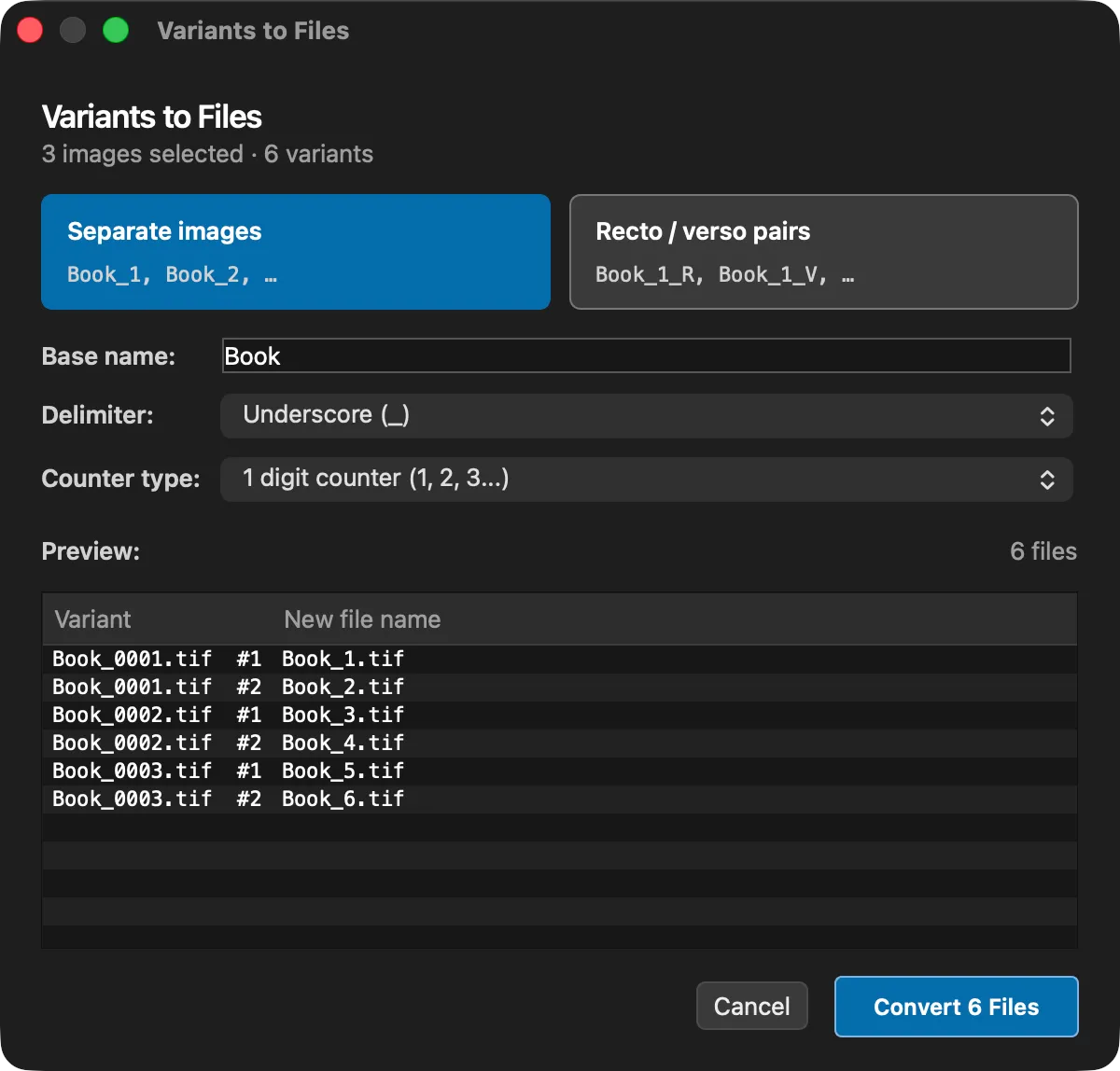
Choose Separate images or Recto / verso pairs. Each shows sample names.
Check the Base name, and choose a Delimiter and a Counter type.
Check the Preview, which lists each variant with its new file name.
Click Convert Files. The button shows the number of files that will be created.
Capture One closes the session briefly and reopens it while the new files are registered. A conversion cannot be cancelled once it has started.
How Files Are Named
Only images with two or more variants are converted. Images with a single variant stay as they are.
For each converted image, the first variant keeps the original file, under its new name. Each further variant becomes a new file in the same folder. One counter runs across the whole selection, in the order the images appear in the Capture One browser.
Separate Images
Every variant gets the base name and the next number. With a base name of Box, three images that each have two variants become Box_1 to Box_6.
Recto / Verso Pairs
Use this when the fronts and backs of loose items were captured as two images: first all the fronts in one frame, then the same items turned over. The images are paired in browser order. The first is the recto and the second is its verso. Variant 1 of both is treated as one object, and so on.
Each object gets the next number, and both of its sides share that number, for example Box_01_R and Box_01_V.
Pairs need an even number of images, and both images of a pair must have the same number of variants.
Naming Options
Base name is filled in with a suggestion, taken from the start of the names of the selected files. For example, IMG_0001 and IMG_0002 suggest IMG.
Delimiter is placed between the parts of the name: Underscore (the default), Hyphen, Space, or None.
Counter type sets how variants are counted:
Counter type | Example |
|---|---|
1 digit counter | 1, 2, 3 |
2 digit counter | 01, 02, 03 |
Uppercase letters | A, B, C |
Lowercase letters | a, b, c |
Recto/Verso with counter | R, V, 3, 4 |
Full Recto/Verso with counter | Recto, Verso, 3, 4 |
Left/Right with counter | Left, Right, 3, 4 |
L/R with counter | L, R, 3, 4 |
Top/Bottom with counter | Top, Bottom, 3, 4 |
With Separate images and one of the side counters, each image takes the number and its variants take the sides. For example, a page-split book gives Book_1_Left, Book_1_Right, Book_2_Left, and so on.
The choice of Separate images or pairs, the delimiter, and the counter type are remembered for next time. The base name is not.
If the Conversion Is Refused
The dialog will not start a conversion that cannot be completed, and says why. The most common reasons are:
- A new file name is already taken by another file in the folder.
- Every selected image has only one variant, so there is nothing to convert.
- Recto / verso pairs is selected with an odd number of images, or the two images of a pair have different numbers of variants.
Color Tags and Albums
Preferences > Convert Variants sets a color tag and an album for the files after conversion, separately for images that had a single variant, the first variant of images that had two or more, and the additional variants.