Screen Blackout
Depending on the position and brightness of your monitor, light from your monitors can spill onto the subject and show up in the image. Screen Blackout covers every screen with black while a DT Nexus capture is exposing, then brings the screens back.
Turning On Screen Blackout
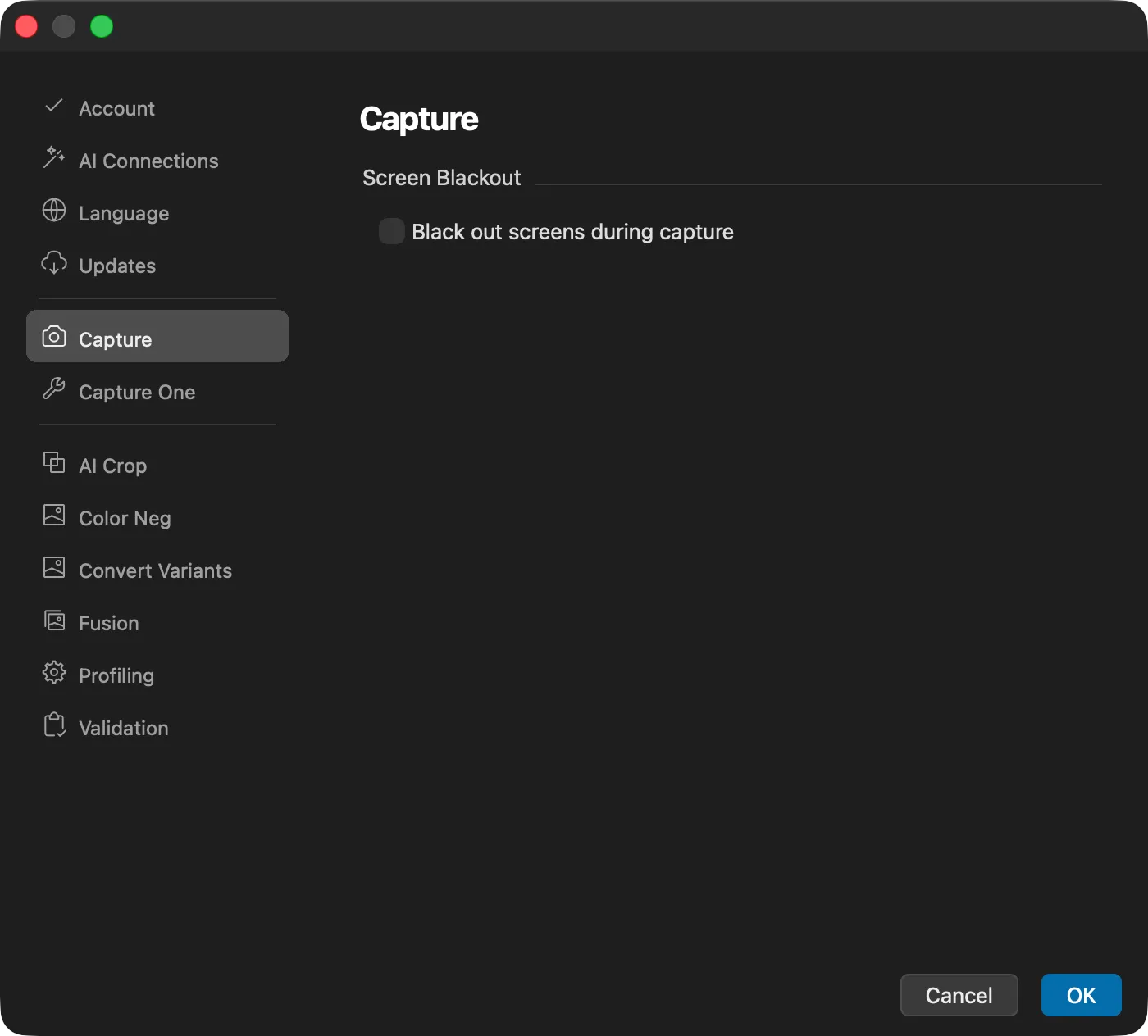
Open DT Nexus > Preferences and select Capture. Under Screen Blackout, tick Black out screens during capture, then click OK. It is off by default.
Which Captures Are Covered
Screen Blackout covers captures started from DT Nexus:
- The Capture button in the Trigger tool
- The DT Nexus Capture shortcut (⌘K), including Universal Capture
- A foot pedal plugged into a DT Stellar
- Captures taken by the Sequencer
Captures started in Capture One or on the camera are not covered.
During the Capture
While the screens are black, a grey ring in the center fills over the exposure time of each frame. A status line shows progress where it helps, for example "Sequencer: 2 of 5 captures" during a sequence. Below it, the screen tells you how to turn Screen Blackout off and that you can click anywhere to dismiss it.
If the Black Screen Is Dismissed or Cannot Appear
- You click the black screen, or it times out. The frame is still taken, and DT Nexus warns: "The black screens were dismissed or timed out, so this frame may have been exposed with the screens lit." Check that frame and capture it again if needed.
- The screens cannot be blacked out. The capture is not taken: "Screens could not be blacked out, so the capture was not taken." This protects you from an exposure with the screens lit when you expected them dark.
In the Sequencer
Each Capture action in a sequence has a Blackout setting: Current Setting (follows Preferences > Capture), On, or Off. Use On for a sequence in which monitor light must never reach the subject, whatever the preference is set to. When a Capture action has turned blackout on, the black screen tells you to set Blackout to "Off" in that Capture step to turn it off.
During a run, the screens can stay dark from one capture to the next. See Running a Sequence for which actions keep the screens dark and which bring them back, and Building a Sequence for the Capture action settings.