Start with Current Crop
2 min
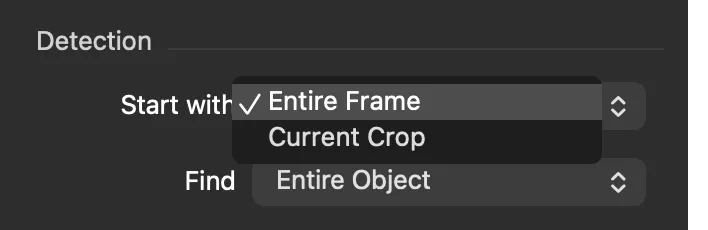
By default AI Crop searches the entire frame of each image, and ignores any crop the image already has. Start with, in the Detection group of the AI Crop & Straighten tool, changes this.
- Entire Frame (default): Ignore the crop each image already has.
- Current Crop: Search only inside the existing crop of each selected variant.
When to Use Current Crop
- Distracting content in the frame. If something in the frame is confusing AI Crop, such as a second object, a tool, or part of the copy stand, draw a rough crop that leaves it out, then run AI Crop with Current Crop. A rough crop can be copied to many images in Capture One before AI Crop is run.
- An inset item. To crop an artwork inside a mat, or one item on a larger page, draw a rough crop just inside the mat or around the item. AI Crop then finds the edges of what is inside your crop.
- One frame of film. In Film mode with ROIs set to Center most, AI Crop picks the frame closest to the center of your crop.
Things to Know
- Each selected variant is searched inside its own crop, so an image with several variants can have a different search area for each.
- The existing crop only sets where AI Crop searches. What happens to the image's variants afterwards is set separately, by Variants. See Sort Order and Variants.
- The Start with setting is saved in AI Crop presets.
In DT Nexus 1.2 this setting was the Ignore current crop item in the [⋮] menu, and it could not be used on images with more than one variant.